Python数据分析-数据可视化
matplotlib 折线图 柱状图 条形图 饼图 环形图 爆炸式饼图 散点图 箱线图 seaborn .dataframe tbody tr th:only-of-type { vertical-align: middle; } .datafra
matplotlib
折线图
import matplotlib.pyplot as plt
from matplotlib import rcParams # 字体
rcParams['font.family'] = 'SimHei'
# 创建图表,设置大小
plt.figure(figsize=(10,5))
# 要绘图的数据
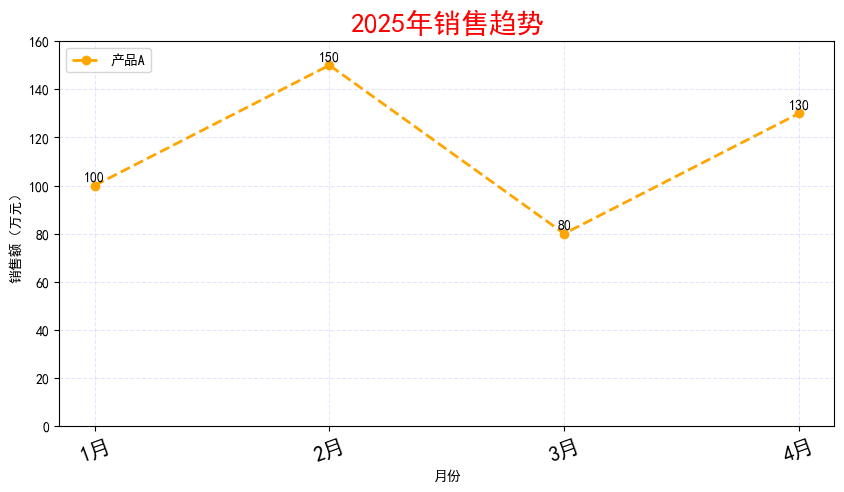
month=["1月","2月","3月","4月"]
sales=[100,150,80,130]
# 绘制折线图
plt.plot(month,sales,
label='产品A',color='orange',
linewidth=2,
linestyle='--',
marker='o') # (x,y)
# 添加标题
plt.title("2025年销售趋势",color='red',fontsize=20)
# 添加坐标轴标签
plt.xlabel('月份',fontsize=10)
plt.ylabel('销售额(万元)',fontsize=10)
# 添加图例
plt.legend(loc='upper left')
# 添加网格线
plt.grid(True,alpha=0.1,color='blue',linestyle='--') # True使得两个方向的格子都有;alpha控制透明度
# plt.grid(axis='y') 只有横向的格子
# 设置刻度字体大小
plt.xticks(rotation=20,fontsize=15) # rotation控制字体旋转角度
# 设置y轴范围
plt.ylim(0,160)
# 在每个数据点上显示数值
for x,y in zip(month,sales):
plt.text(x,y+1,str(y),ha='center',va='bottom',fontsize=10)
# plt.text(x位置,y位置,显式内容,水平排列方式,垂直排列方式,字体大小)
#
# 显式图表
plt.show()
柱状图
# 创建图表,设置大小
plt.figure(figsize=(10,5))

# 要绘图的数据
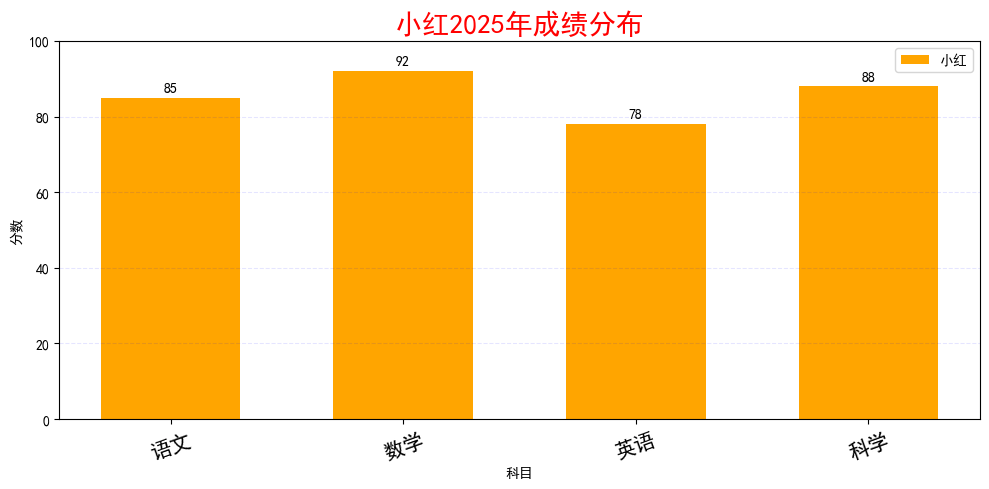
subjects=['语文','数学','英语','科学']
scores=[85,92,78,88]
# 绘制柱状图
plt.bar(subjects,scores,
       label='小红',
       color='orange',
       width=0.6)
# 添加标题
plt.title("小红2025年成绩分布",color='red',fontsize=20)
# 添加坐标轴标签
plt.xlabel('科目',fontsize=10)
plt.ylabel('分数',fontsize=10)
# 添加图例
plt.legend(loc='upper right')
# 添加网格线
plt.grid(axis='y',alpha=0.1,color='blue',linestyle='--')

# 设置刻度字体大小
plt.xticks(rotation=20,fontsize=15) # rotation控制字体旋转角度
# 设置y轴范围
plt.ylim(0,100)
# 在每个数据点上显示数值
for x,y in zip(subjects,scores):
    plt.text(x,y+1,str(y),ha='center',va='bottom',fontsize=10)
    # plt.text(x位置,y位置,显式内容,水平排列方式,垂直排列方式,字体大小)
# 自动优化排版
plt.tight_layout()


# 显式图表
plt.show()
条形图
# 创建图表,设置大小
plt.figure(figsize=(10,5))

# 要绘图的数据
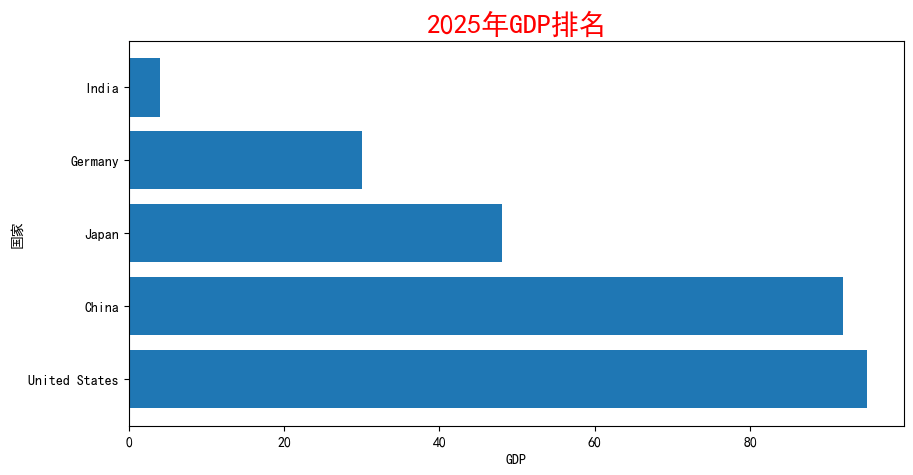
countries=['United States','China','Japan','Germany','India']
gdp=[95,92,48,30,4]
# 绘制条形图
plt.barh(countries,gdp)
# 添加标题
plt.title("2025年GDP排名",color='red',fontsize=20)
# 添加坐标轴标签
plt.xlabel('GDP',fontsize=10)
plt.ylabel('国家',fontsize=10)


# 显式图表
plt.show()
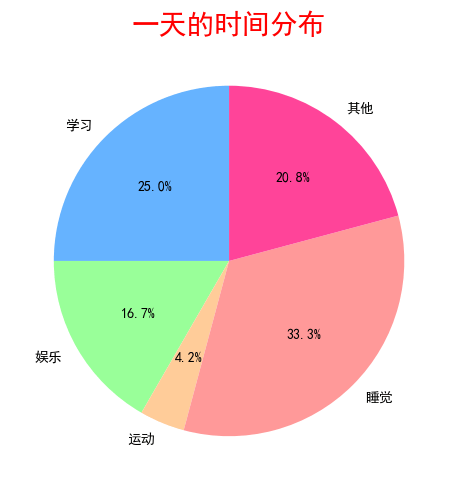
饼图
# 创建图表,设置大小
plt.figure(figsize=(10,5))

# 要绘图的数据
things = ['学习','娱乐','运动','睡觉','其他']
times=[6,4,1,8,5]
colors=['#66b3ff','#99ff99','#ffcc99','#ff9999','#ff4499'] # 配色方案
# 绘制饼图
plt.pie(times,labels=things,
       autopct='%.1f%%', # 显式百分比
       startangle=90, # 调整初始画图的角度
       colors = colors
       )
# 添加标题
plt.title("一天的时间分布",color='red',fontsize=20)
# 自动优化排版
plt.tight_layout()


# 显式图表
plt.show()
环形图
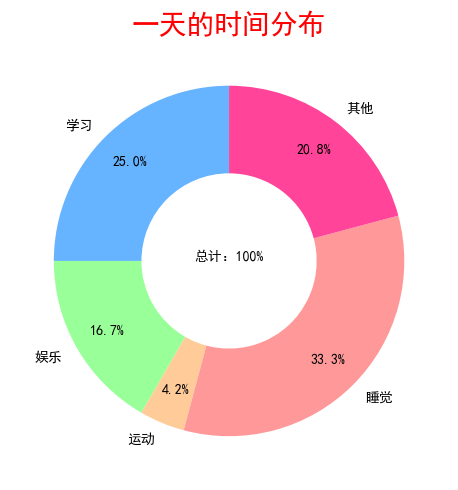
# 创建图表,设置大小
plt.figure(figsize=(10,5))

# 要绘图的数据
things = ['学习','娱乐','运动','睡觉','其他']
times=[6,4,1,8,5]
colors=['#66b3ff','#99ff99','#ffcc99','#ff9999','#ff4499'] # 配色方案
# 绘制环形图
plt.pie(times,labels=things,
       autopct='%.1f%%', # 显式百分比
       startangle=90, # 调整初始画图的角度
       colors = colors, # 设置配色
       wedgeprops={'width':0.5}, # 设置圆环的宽度
       pctdistance=0.8 # 设置百分数显示的位置
       )
# 添加标题
plt.title("一天的时间分布",color='red',fontsize=20)
# 在圆环中心添加内容
plt.text(0,0,'总计:100%',ha='center')
# 自动优化排版
plt.tight_layout()


# 显式图表
plt.show()
爆炸式饼图
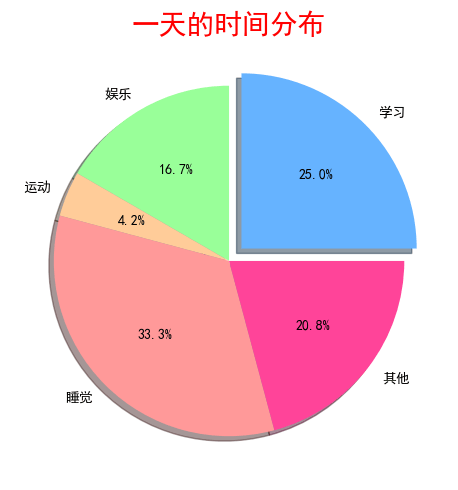
# 创建图表,设置大小
plt.figure(figsize=(10,5))

# 要绘图的数据
things = ['学习','娱乐','运动','睡觉','其他']
times=[6,4,1,8,5]
colors=['#66b3ff','#99ff99','#ffcc99','#ff9999','#ff4499'] # 配色方案
explode=[0.1,0,0,0,0] # 设置突出块位置
# 绘制
plt.pie(times,labels=things,
       autopct='%.1f%%', # 显式百分比
       startangle=0, # 调整初始画图的角度
       colors = colors, # 设置配色
       explode=explode, # 设置突出块
       shadow =True, # 设置阴影
       )
# 添加标题
plt.title("一天的时间分布",color='red',fontsize=20)

# 自动优化排版
plt.tight_layout()


# 显式图表
plt.show()
散点图
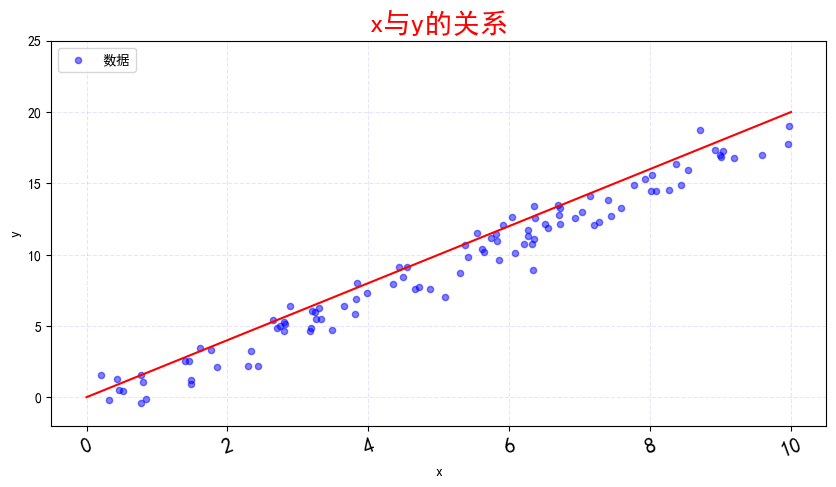
import random
# 创建图表,设置大小
plt.figure(figsize=(10,5))

# 要绘图的数据
x=[]
y=[]
for i in range(100):
    tmp = random.uniform(0,10)
    x.append(tmp)
    tmp2 = 2*tmp + random.gauss(-1,1)
    y.append(tmp2)
# 绘制散点图
plt.scatter(x,y,
           color='blue',
           alpha=0.5,
           s=20, # 设置圆点大小
           label='数据'
           )
# 添加标题
plt.title("x与y的关系",color='red',fontsize=20)
# 添加坐标轴标签
plt.xlabel('x',fontsize=10)
plt.ylabel('y',fontsize=10)
# 添加图例
plt.legend(loc='upper left')
# 添加网格线
plt.grid(True,alpha=0.1,color='blue',linestyle='--') # True使得两个方向的格子都有;alpha控制透明度
# plt.grid(axis='y') 只有横向的格子
# 设置刻度字体大小
plt.xticks(rotation=20,fontsize=15) # rotation控制字体旋转角度
# 设置y轴范围
plt.ylim(-2,25)

# 添加一条直线
plt.plot([0,10],[0,20],color='red')

# 显式图表
plt.show()
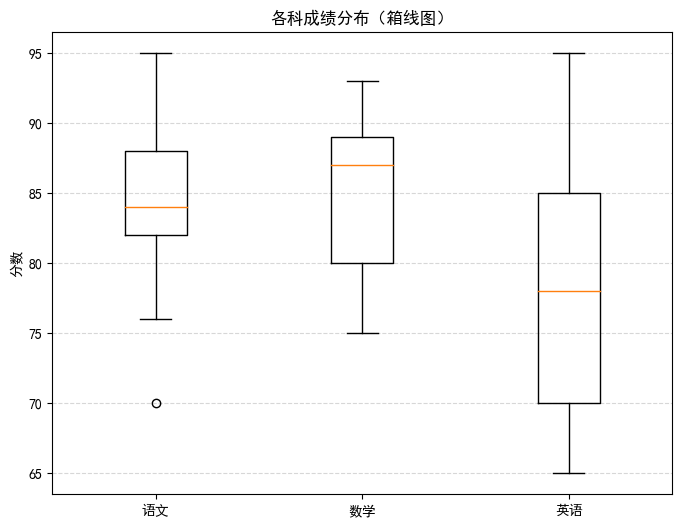
箱线图
# 模拟 3 门课的成绩
data = {
    '语文': [82, 85, 88, 70, 90, 76, 84, 83, 95],
    '数学': [75, 80, 79, 93, 88, 82, 87, 89, 92],
    '英语': [70, 72, 68, 65, 78, 80, 85, 90, 95]
}

plt.figure(figsize=(8,6))
plt.boxplot(data.values(),labels=data.keys())

plt.title('各科成绩分布(箱线图)')
plt.ylabel("分数")
plt.grid(True,axis='y',linestyle='--',alpha=0.5)
plt.show()
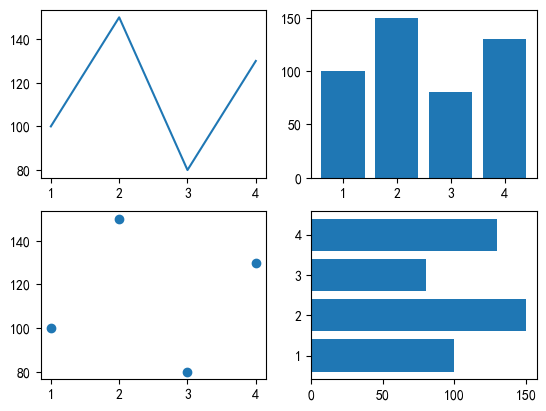
# 多个图的绘制方法
# 要绘图的数据
month = ['1','2','3','4']
sales = [100,150,80,130]

# 动态图表的生成
# f1 = plt.subplot(2,2,1) #生成一个子图 行 列 索引
f1 = plt.subplot(221) #生成一个子图 行 列 索引
f1.plot(month,sales)
f2 = plt.subplot(2,2,2)
f2.bar(month,sales)
f3 = plt.subplot(2,2,3)
f3.scatter(month,sales)
f4 = plt.subplot(224)
f4.barh(month,sales)
<BarContainer object of 4 artists>
seaborn
import seaborn as sns
import pandas as pd
penguins = pd.read_csv('penguins.csv')penguins.dropna(inplace=True)
penguins.head()
vertical-align: top;
}
.dataframe thead th {
text-align: right;
}
| species | island | bill_length_mm | bill_depth_mm | flipper_length_mm | body_mass_g | sex | |
|---|---|---|---|---|---|---|---|
| 0 | Adelie | Torgersen | 39.1 | 18.7 | 181.0 | 3750.0 | Male |
| 1 | Adelie | Torgersen | 39.5 | 17.4 | 186.0 | 3800.0 | Female |
| 2 | Adelie | Torgersen | 40.3 | 18.0 | 195.0 | 3250.0 | Female |
| 4 | Adelie | Torgersen | 36.7 | 19.3 | 193.0 | 3450.0 | Female |
| 5 | Adelie | Torgersen | 39.3 | 20.6 | 190.0 | 3650.0 | Male |
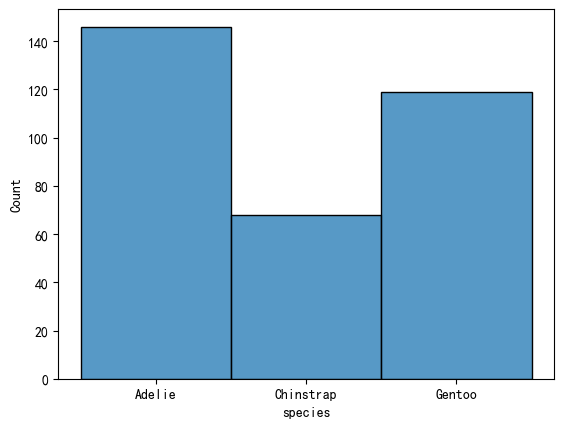
# 直方图
sns.histplot(data=penguins,x='species')
<Axes: xlabel='species', ylabel='Count'>
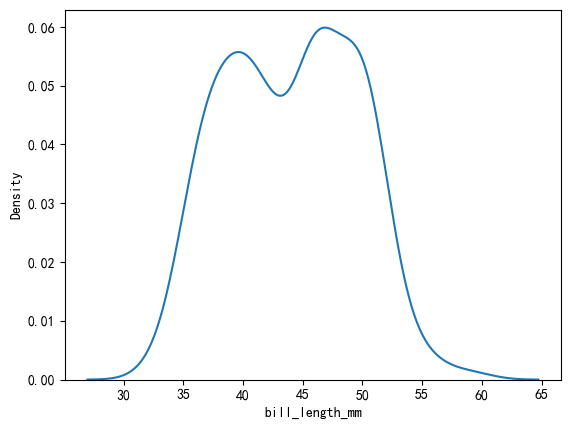
# 核密度估计图
sns.kdeplot(data=penguins,x='bill_length_mm')
<Axes: xlabel='bill_length_mm', ylabel='Density'>
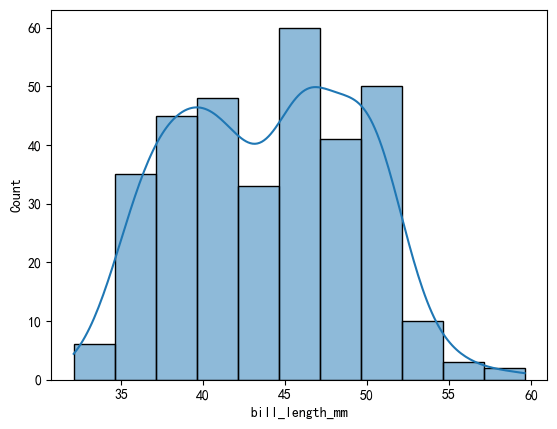
sns.histplot(data=penguins,x='bill_length_mm',kde=True)<Axes: xlabel='bill_length_mm', ylabel='Count'>
# 计数图
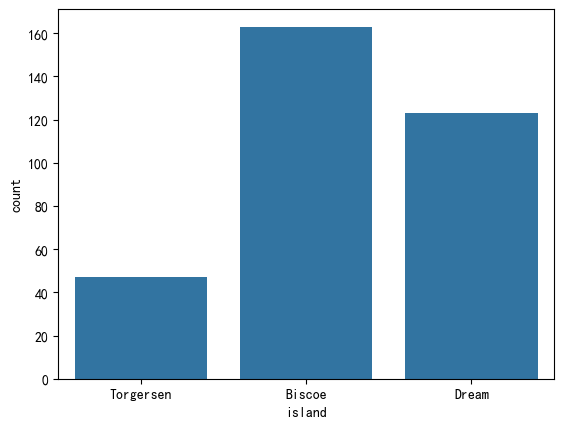
sns.countplot(data=penguins,x='island')
<Axes: xlabel='island', ylabel='count'>
# 散点图
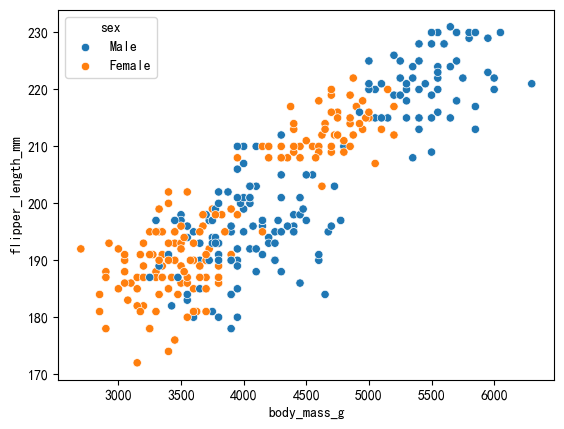
sns.scatterplot(data=penguins,x='body_mass_g',
               y='flipper_length_mm',
               hue='sex', # 按sex来分类
               )
<Axes: xlabel='body_mass_g', ylabel='flipper_length_mm'>
# 蜂窝图
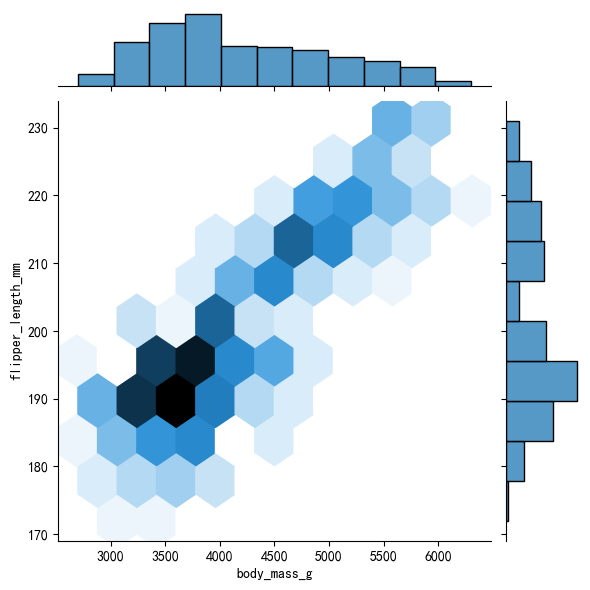
sns.jointplot(data=penguins,x='body_mass_g',
             y='flipper_length_mm',kind='hex')
<seaborn.axisgrid.JointGrid at 0x1e6d16bc8b0>
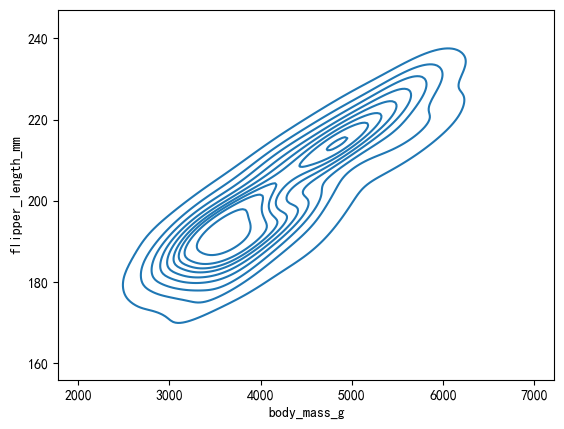
#二维核密度估计图
#通过kdeplot()函数,同时设置x参数和y参数来绘制二维核密度估计图。
sns.kdeplot(data=penguins, x="body_mass_g", y="flipper_length_mm")
<Axes: xlabel='body_mass_g', ylabel='flipper_length_mm'>
#通过fill=True设置为填充,通过cbar=True设置显示颜色示意条。
sns.kdeplot(data=penguins, x="body_mass_g", y="flipper_length_mm", fill=True, cbar=True)
<Axes: xlabel='body_mass_g', ylabel='flipper_length_mm'>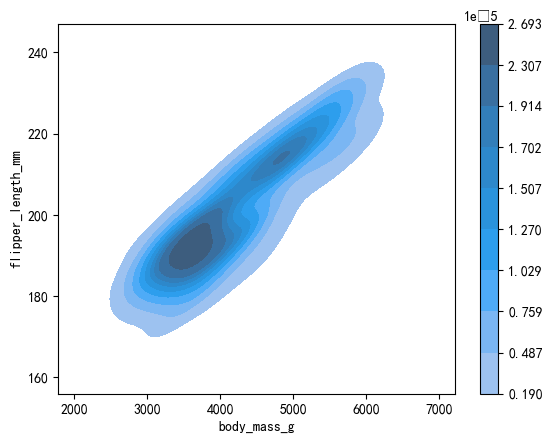
#条形图
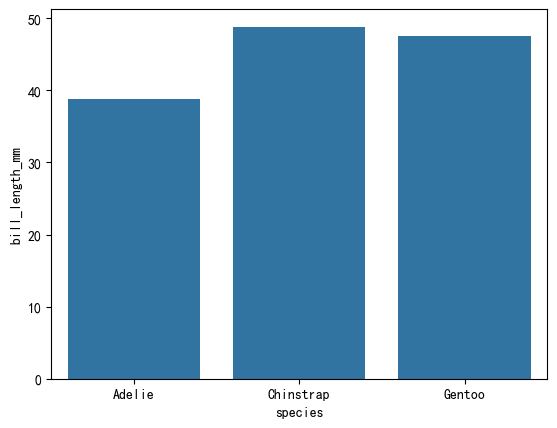
sns.barplot(data=penguins, x="species", y="bill_length_mm", estimator="mean", errorbar=None)
<Axes: xlabel='species', ylabel='bill_length_mm'>
#箱线图
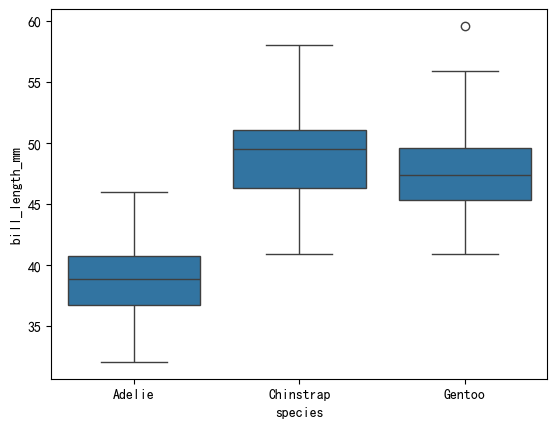
sns.boxplot(data=penguins, x="species", y="bill_length_mm")
<Axes: xlabel='species', ylabel='bill_length_mm'>
#小提琴图
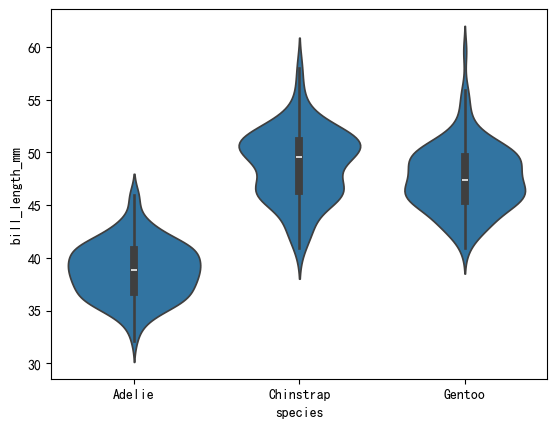
'''小提琴图(Violin Plot) 是一种结合了箱线图和核密度估计图(KDE)的可视化图表,用于展示数据的分布情况、集中趋势、散布情况以及异常值。小提琴图不仅可以显示数据的基本统计量(如中位数和四分位数),还可以展示数据的概率密度,提供比箱线图更丰富的信息。'''
sns.violinplot(data=penguins, x="species", y="bill_length_mm")
<Axes: xlabel='species', ylabel='bill_length_mm'>
#成对关系图
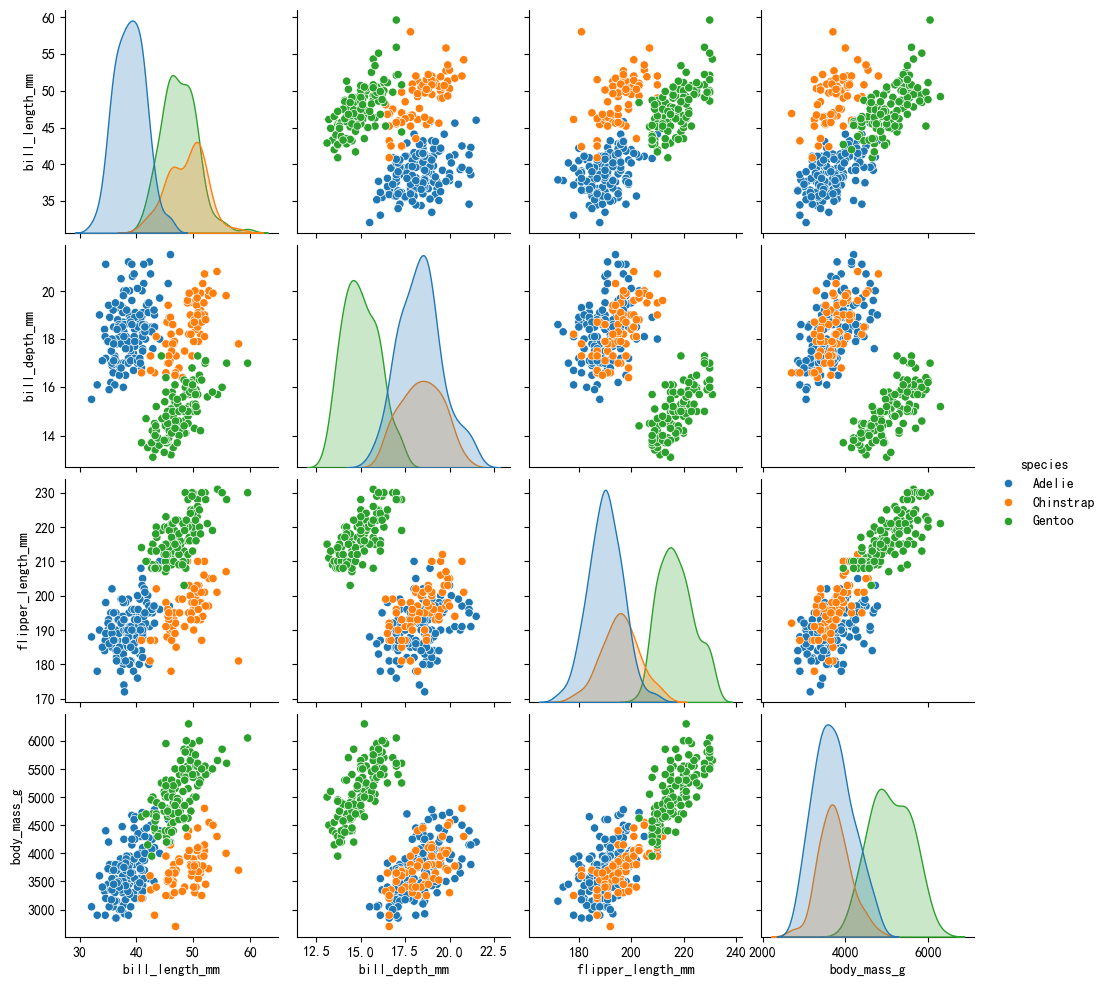
'''成对关系图是一种用于显示多个变量之间关系的可视化工具。它可以展示各个变量之间的成对关系,并且通过不同的图表形式帮助我们理解数据中各个变量之间的相互作用。
对角线上的图通常显示每个变量的分布(如直方图或核密度估计图),帮助观察每个变量的单变量特性。其他位置展示所有变量的两两关系,用散点图表示。'''
sns.pairplot(data=penguins, hue="species")
<seaborn.axisgrid.PairGrid at 0x1e6d2d6b400>